
Audio Converter for iPhone
Thirteen audio tools that work on the recordings already on your phone — trim, merge, fade, reverse, compress, loop, change speed — plus a recorder and a history of every job. Free, no ads.
- Works on the voice memos and downloads already in your Files app — nothing to sync to a computer first
- Trim, merge, fade in and out, reverse, loop, change speed, normalise, stereo to mono, compress
- Record straight into the app, then edit what you just recorded
- History keeps every finished file so you can share it again without redoing the work
- No ads anywhere in the app
- iOS 15.1 or later, iPhone and iPad
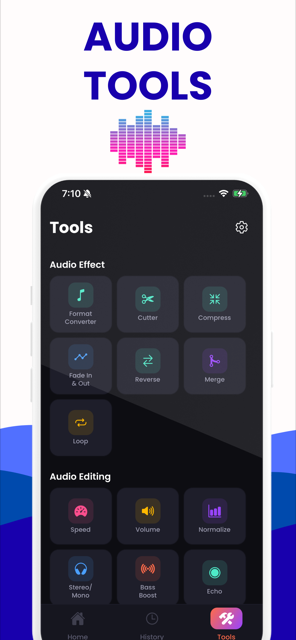
What the iPhone app is for
It is an audio workshop for the files that are already on your phone. Voice memos, WhatsApp voice notes you saved, a recording of a lecture, a track you downloaded — the app opens them from Files, does the job, and hands the result back to the share sheet.
The thirteen tools are the ones people actually reach for:
| Tool | What it does |
|---|---|
| Cutter | Trims a recording down to the part that matters |
| Merge | Joins two files end to end |
| Fade in & out | Ramps the start and the end so a clip does not begin with a thud |
| Reverse | Plays the audio backwards |
| Loop | Repeats a clip a set number of times |
| Speed | Speeds up or slows down between 0.5× and 2× |
| Volume | Raises or lowers the level |
| Normalize | Brings the loudest peak up to full scale |
| Stereo to mono | Folds two channels into one, which halves the size of a spoken recording |
| Bass boost | Lifts the low end |
| Echo | Adds a repeating tail |
| Compress | Reduces the file size |
| Recorder & player | Records new audio and previews the result before you share it |
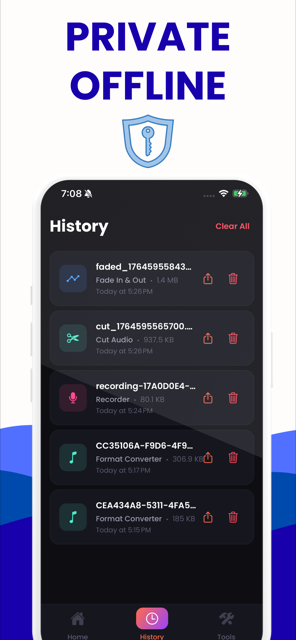
Every finished file lands in History, with the tool that made it, the size and the time. That is the feature that stops you redoing a job because you cannot remember where the last one went.
iPhone app or this website?
They are genuinely different tools and it is worth being straight about which is which.
| If you want to… | Use | Why |
|---|---|---|
| Trim, merge or fade a recording that is on your phone | The app | The file is already there; no syncing, no cable, works with no signal |
| Record something and edit it immediately | The app | The website has no recorder |
| Change a file's format | This website | Ten output formats, and the conversion runs in the browser |
| Make an iPhone ringtone | This website | Trim to 30 seconds here, then set it from Files — on iOS 26 that needs no computer at all |
| Get the soundtrack out of a video | This website | Copies the audio out without re-encoding it |
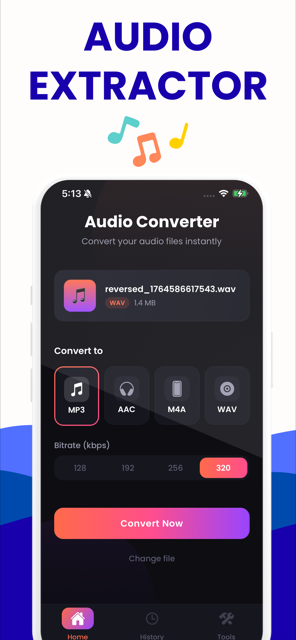
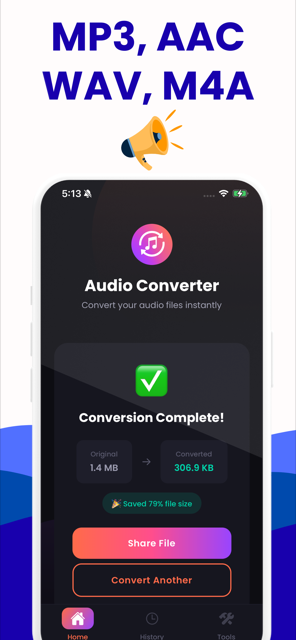
The iPhone build's Convert screen currently returns an error rather than converting — format conversion is the one thing on this list that does not work on iOS today. The editing tools above all work, and the converter on this website is free and needs nothing installed. We would rather say so here than have you find out after downloading.
Where your audio goes
Nowhere. The app processes files on the device, exactly as this website processes them in the browser. There is no account, no cloud folder and no upload step in either one.
Getting started
- Install the app and open it.
- Tap Tools and pick the job — Cutter, Merge, Fade, Speed and so on.
- Choose a file from Files, iCloud Drive or wherever it lives.
- Set the one control that tool needs, and run it.
- Share the result, or find it again later under History.
What the app looks like
These are the real screens, not mock-ups.
About the app
Is the iPhone app free?
Yes. The app is free to download and there are no ads. It offers a paid subscription for unlimited use of the converter screen, but every editing tool listed above is available without it.
Does it work without an internet connection?
Yes. All the processing happens on the device, so the tools work in aeroplane mode, on the Underground, or anywhere else with no signal. Nothing is sent to a server at any point.
Which iPhones does it run on?
Anything on iOS 15.1 or later, which covers the iPhone 6s and newer. It runs on iPad too, in the iPhone layout.
Can it convert M4A to MP3 on the iPhone itself?
Not today — the Convert screen returns an error on iOS, so the format conversion the app is named after does not currently work there. The editing tools do. For a format change, the converter on this website runs in Safari on the same phone and needs nothing installed.
Where do the finished files go?
Each one is saved in the app and listed under History with its tool, size and timestamp. From there you can share it into Files, Mail, Messages, AirDrop or any other app, as many times as you like.